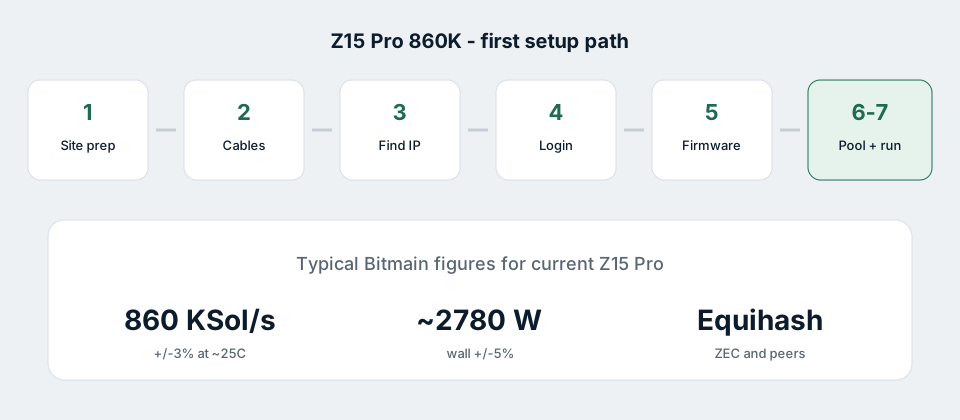
This guide is for the current Bitmain Antminer Z15 Pro sold as an 860 KSol/s class unit (model line 240-Z): typical hashrate 860 KSol/s (±3%), wall power about 2780 W (±5%) at ~25°C, Equihash only. Older blog posts that still say 840K / 2560 W are often recycling launch-era copy — see 860K vs 840K listings.
You do not need fancy software. You need correct power, a wired network, Bitmain’s IP tool (or your router), and a pool URL. Electrical mistakes kill more new units than bad pool passwords. If you have not sized the circuit yet, read power & wiring first, then come back here.
1. What to expect in the box
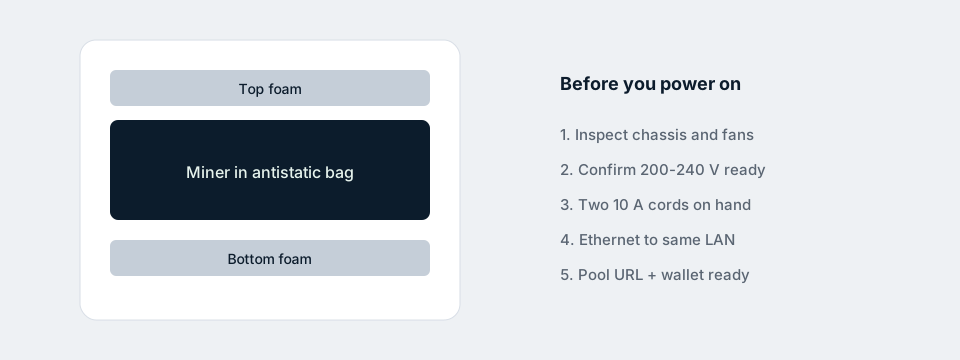
A typical shipment is a Bitmain carton, foam top and bottom, and the miner in an antistatic bag. Power cords are often not included — budget for two cords rated at least 10 A each that match your PDU or receptacles.
Before power:
- Fans spin freely; no crushed fins or loose panels.
- Intake and exhaust have clear air — this unit is loud (~75 dBA class) and hot.
- You have a real 200–240 V feed ready (not a 120 V “just to test”).
- Ethernet cable reaches the same LAN as your setup PC.
- You already know which Equihash pool URL and wallet format you will use.
2. Connect network and power (order matters)
The Z15 Pro has no Wi-Fi. Use Ethernet. There are two AC inlets — both should be used. Running on one cord because the fans spun up is how connectors overheat.
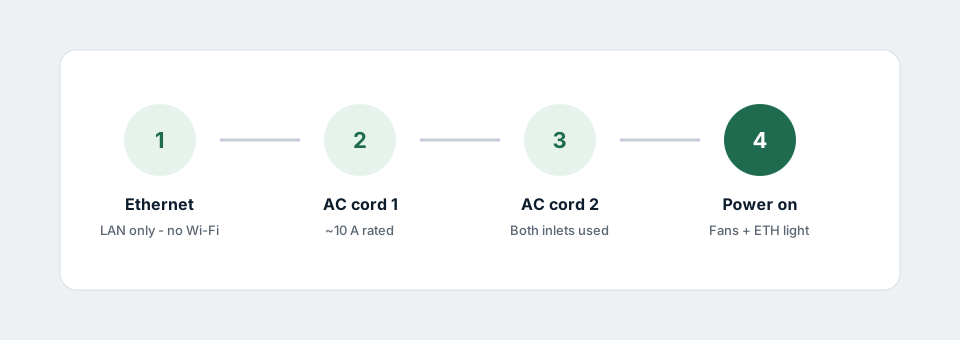
- Seat the Ethernet cable firmly.
- Plug both AC cords into the miner and into a known-good 200–240 V source / PDU.
- Power on. Fans should ramp; the Ethernet link light should come up.
If the unit browns out when fans hit full speed, fix the electrical side before chasing software. Details: 200–240 V and dual 10 A feeds.
3. Find the miner’s IP address
Your PC and the miner must be on the same local network. Three reliable approaches:
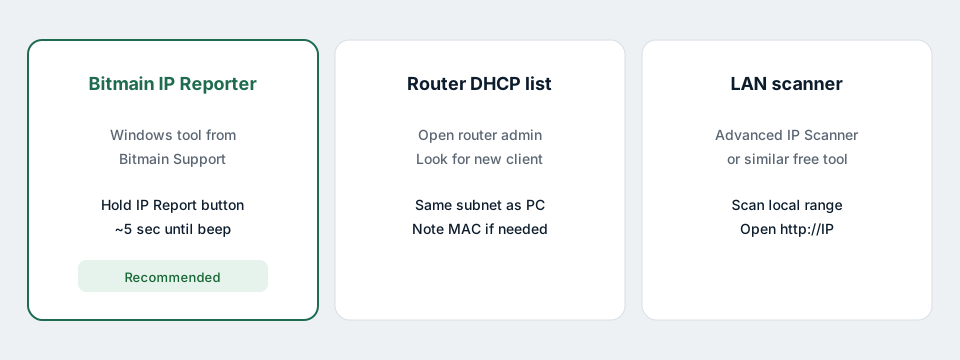
Bitmain IP Reporter (recommended on Windows)
- Download IP Reporter from Bitmain’s official Support / firmware download area — not a random mirror.
- Extract, right-click
IPReporter.exe, run as Administrator. - Choose Default (home) or Shelf/Step/Position (rack farms), then Start.
- On the control board, hold the IP Report button until it beeps (~5 seconds). The tool should show the IP.
Router DHCP list
Log into your router admin page and look for a new wired client after the miner boots. Note the IP (and MAC if you want a DHCP reservation later).
LAN scanner
Any reputable local network scanner can list devices on your subnet. Open http://THE_IP in a browser once you find it.
4. Log in to the web UI
Enter the IP in Chrome / Edge / Firefox. Default credentials on Antminer controllers are almost always:
- Username:
root - Password:
root
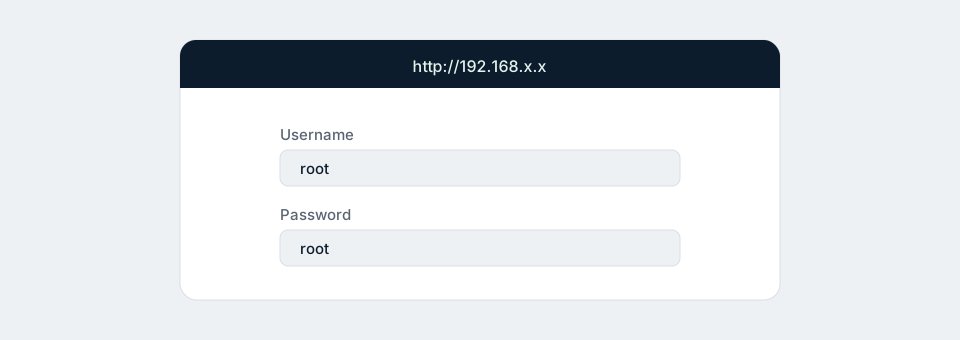
After login, change the password in the system / admin section. Leaving root/root forever is how strangers end up pointing your hashrate at their wallet.
5. Check (and only then update) firmware
In the miner UI, note the current firmware version / date. Compare it with the official Bitmain download page for Z15 Pro.
- If they match, leave it alone and move to pool settings.
- If Bitmain published something newer, download only from Bitmain. Third-party “boost” firmwares are a common way to brick boards or steal hash.
- When upgrading, keep settings if the UI offers that option, wait for the reboot, and do not cut power mid-flash.
Stock firmware is enough for honest Equihash mining. You do not need a custom OS to get near the published 860K band in a cool room.
6. Add your Equihash mining pool
Open Settings (sometimes labelled Miner Configuration / General Settings). Antminers usually support three pools with priority: Pool 1 first, then 2 and 3 if the higher ones fail.
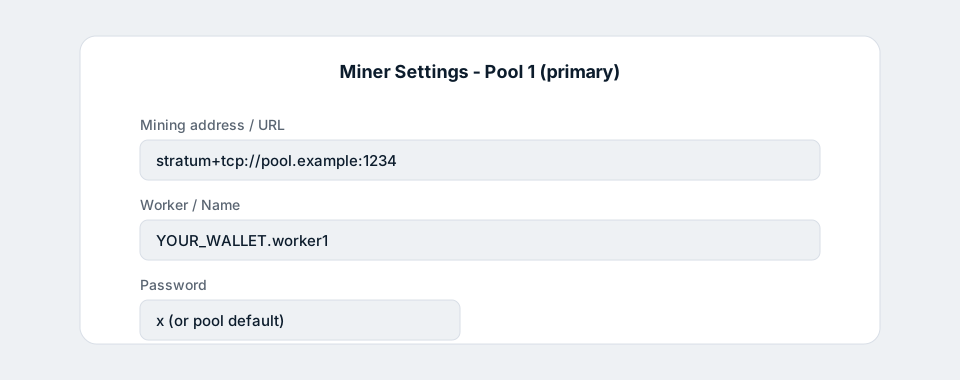
Typical fields:
- URL / mining address — the stratum endpoint from the pool (host + port). Copy it; do not invent the port.
- Worker / Name — often
WALLET_ADDRESS.workerNameor a pool account worker string. Follow that pool’s help page. - Password — frequently
xor blank rules defined by the pool.
Save / Apply. Give it a few minutes. Wrong coin algorithm, wrong port, or a typo in the wallet string are the usual reasons for zero accepted shares.
This miner is Equihash (ZEC and related Equihash coins where the pool supports them). It will not mine Bitcoin. If a seller promised that, walk away — see the FAQ.
7. Confirm it is actually mining
On the dashboard, wait for hashrate to climb and for the pool side to show a connected worker.
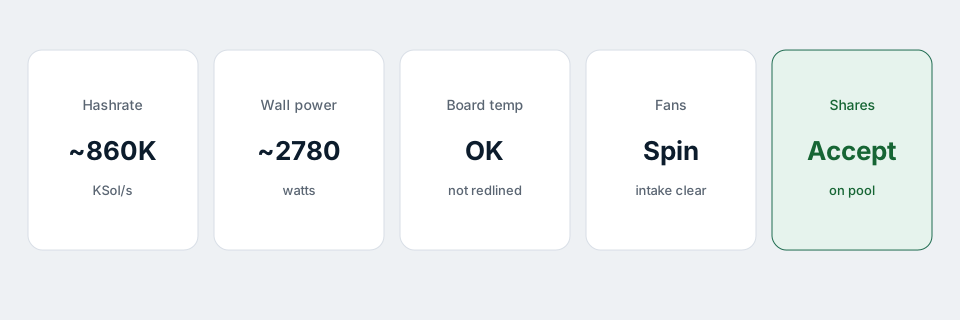
- Hashrate — settling near ~860 KSol/s (±3%) in a cool environment is normal. Hot recirculated air will pull that down.
- Power — expect wall draw in the ~2780 W (±5%) neighbourhood at Bitmain’s reference ambient, not a laptop-charger number.
- Temperature / fans — boards should not sit in alarm territory; intake must stay unobstructed.
- Shares — accepted shares on the pool UI matter more than a pretty local chart.
For electricity cost vs revenue, use the ROI calculator with your real $/kWh. Continuous draw at 2780 W is about 66.7 kWh/day.
Quick troubleshooting
- No IP — confirm Ethernet link light, same subnet, try IP Reporter again, reboot miner once.
- Login page never loads — try another browser, disable VPN on the PC, ping the IP.
- Hashrate 0 / no shares — re-check pool URL, port, worker string, and that the pool is Equihash for your coin.
- Hashrate low + watts high — fix heat and airflow before assuming a bad board.
- Random reboots — undersized cords, one AC inlet only, shared overloaded circuit.
If hardware still fails after power, network, and pool evidence are clean, gather screenshots (dashboard, pool worker, volts if measured) and contact support rather than flashing random firmware in a loop.
FAQ
What is the default login for Antminer Z15 Pro?
root / root. Change it after first access.
Does the Z15 Pro support Wi-Fi?
No. Wired Ethernet only.
How much power does the 860K use?
Plan around Bitmain’s typical ~2780 W wall figure (±5%) at ~25°C for the current Z15 Pro — not older 2560 W blog numbers.
How do I find the IP?
Bitmain IP Reporter + IP Report button, router DHCP list, or a LAN scanner.
If you buy from us
Our Z15 Pro 860K product page assumes you can provide 200–240 V infrastructure and two proper cords. We sell original Bitmain hardware with the specs we publish — not a mystery “840K SEO title” SKU. Questions before power-on: support@z15pro860.com.
Related: Power & wiring · 860K vs 840K · All guides